
Buying guides
A tablet for drawing: check the pen and application before the screen
A tablet for drawing should be shortlisted around the application and pen you need, not just the screen size.
Published Information checked
A tablet for drawing should be shortlisted around the application and pen you need, not just the screen size. Write down the drawing tasks, file formats and devices involved in your workflow. Sketching, annotating course notes and editing layered artwork can create different requirements. Confirm those requirements before assuming that a familiar tablet family includes a suitable pen or supports every application feature.
Choose the application first
Read the application publisher's current device and operating-system requirements. Check whether the version available on the tablet supports the tools and export formats you need. A desktop and tablet application with similar names may offer different functions. If files must move to a work or course computer, test or confirm that exchange before building the hardware shortlist. Include any separate software purchase or subscription in the planning.
Match the pen to the exact tablet
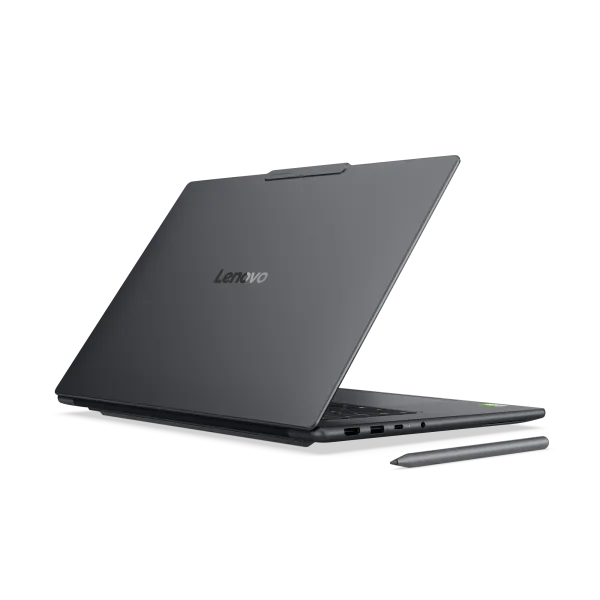
Apple's official Pencil page shows a compatibility section because Pencil options are not interchangeable across every iPad. Apply the same discipline to other tablet systems: copy the complete tablet model and the pen version. Check whether the pen is included, how it charges or pairs, and which advertised features work with that combination. A pen shown beside a screen in a photograph is not evidence that it is part of the order.
Consider the working surface
Measure a comparable rectangle on your desk or sketchbook and think about the tools surrounding the canvas. A larger screen can provide more room but also changes carrying weight and storage. Check the usable application layout rather than equating the entire diagonal with drawing space. If you work on the move, include the case, pen storage and any stand in the complete weight and footprint.
Plan storage and export
Estimate the size of a few representative projects and consider where finished files will live. Read the supported connection and file-transfer methods for the tablet and application. If using cloud storage, check the available account arrangement and any work restrictions. A larger device capacity does not replace a separate plan for recovering important artwork. Keep the drawing workflow and the backup workflow as different parts of the purchase.
A student-art example
Suppose a course requires layered files in a particular format. Candidate A runs an application that produces those files with the required features; candidate B runs a simplified version that does not meet the brief. Compare that difference before judging screen size or pen appearance. If the workflow is unconfirmed, ask the course provider or application publisher rather than relying on a retailer's broad description of creative use.
Record the whole kit
Save the tablet model, storage capacity, pen version and case or stand. Confirm the supplied charging equipment and the retailer's return process. On arrival, check the components and follow the pairing instructions, then create and export a small ordinary test document. This is a compatibility check for the intended purchase, not a claim that any tablet produces better art. A useful drawing kit is one whose application, pen and file workflow all support the work you plan.
Your comparison worksheet
Keep one short record for each candidate. Resolve the details below from the current listing or a direct supplier answer before treating the options as equivalent. Leave an uncertain point clearly marked rather than filling it with an assumption.
- Application: Supported device and the actual tools and file formats required
- Pen: Exact compatible pen version and the features supported with this tablet
- Working area: Application layout, carrying weight and the selected stand or case
- Files: Storage estimate, export workflow and a separate recovery arrangement
- Contents: Tablet capacity, pen, charging equipment and included accessories confirmed
Continue with the retailer information
Explore Apple, Samsung, Microsoft Store. These profiles provide a route to the official shops and their published service information. Use the exact product or order details from your worksheet when following those links, and confirm the current selected option before paying.
For more relevant retailers, browse our electronics shops directory. Compare businesses that genuinely serve this purchase, keeping differences in products and shopping arrangements visible rather than treating every retailer as interchangeable.
The official source below provides further product or ordering information. Read the details relevant to your selected item, and retain any supplier answer that materially changes the comparison.
Sources and checks
Continue reading
Buying guides
Choose a laptop for study: software, weight and working space
A useful study laptop starts with the course, not a processor badge.
Read the guide
Buying guides
An external SSD: capacity, connection and backup planning
An external SSD can carry files between computers or hold another copy of important work, but those are different jobs.
Read the guideBuying guides
A home-office monitor: match the screen to your laptop and desk
A monitor should make your actual work easier to arrange.
Read the guideEXPLORE THE DIRECTORY
Related shop profiles

Apple
Apple’s UK online store sells the brand’s own devices and accessories, including iPhone, Mac, iPad, Apple Watch and AirPods.

Samsung
Samsung’s UK website is a direct shopping and support route for the brand’s smartphones, tablets, computers, wearables, televisions, audio and home appliances.

Microsoft Store
Microsoft Store UK is the brand’s direct shopping route for Surface computers, Xbox hardware, accessories, software and subscriptions.