
Buying guides
A desktop PC shortlist: compare the complete specification
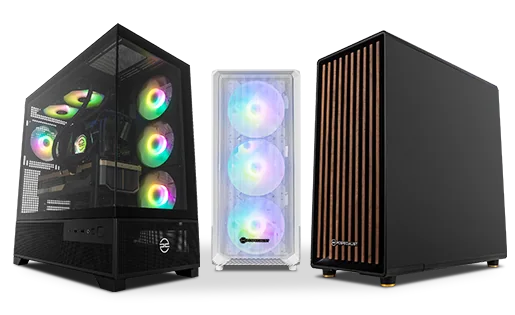
Desktop PCs with similar cases can contain very different components.
Published Information checked
Desktop PCs with similar cases can contain very different components. Start with the applications, games or work tasks you need to run and list the display equipment you already own. Then compare complete configurations. A family name, processor brand or attractive case photograph is not enough to establish that two computers provide the same specification.
Make a component table
Copy the exact processor, graphics hardware, memory capacity, storage drives and operating-system version. Keep manufacturer and model information where the listing supplies it. A larger number in one column does not automatically outweigh a limitation in another. If an important component is described only generically, ask the retailer for the detail before treating two builds as equivalent. Record any selectable configuration changes separately from the starting listing.
Read the intended workload requirements
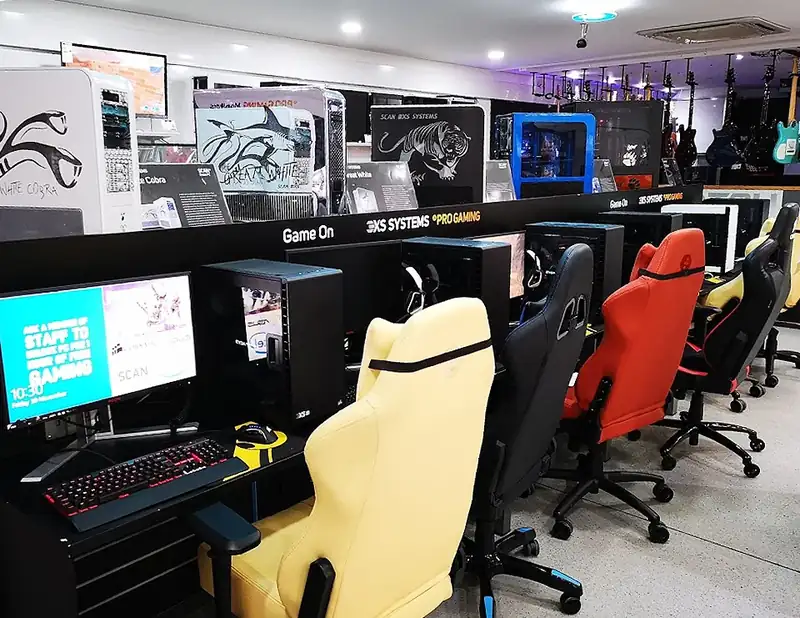
Use the application or game publisher's current requirements for the tasks you plan. Distinguish supported requirements from a desirable performance target. A system that opens an application is not necessarily proven to meet a particular rendering or gaming expectation. Avoid assigning frame rates or completion times without appropriate tests. Specialist builders such as Scan, PCSpecialist and CCL offer different configurations; use those listings to form questions about the complete build.
Include the equipment around the tower
Check whether the purchase includes a monitor, keyboard, mouse, wireless networking or speakers. Many desktop listings are tower-only arrangements. Record the display connections and compare them with your monitors. Add any required cable or adapter after confirming compatibility. Measure the case with access for connections and the manufacturer's airflow requirements, not just the rectangular space beneath the desk.
Ask about future changes carefully
If you expect to add storage or replace components, ask the builder what the supplied configuration supports. Check the relevant space, connectors and supported parts instead of assuming every case or motherboard offers the same expansion. Read how support and warranty arrangements apply to the proposed changes. An upgrade plan should be based on confirmed compatibility, not a general claim that every desktop is easy to modify.
A specification comparison
Imagine two PCs advertised with the same processor family. One includes a particular graphics card and a larger storage drive, while the other uses different graphics hardware and includes a monitor. Split the bundles into components before comparing totals. If the monitor is unnecessary, remove that assumed value from your reasoning. If it is essential, add a suitable display to the first basket. The case photograph would not reveal the decisive differences.
Finish with a clear build record
Save the chosen configuration, included accessories, operating system and support route. Check the delivery package and any instructions for initial setup. When it arrives, verify the documented components through the supplied information and follow the builder's guidance before ordinary use.
Your comparison worksheet
Keep one short record for each candidate. Resolve the details below from the current listing or a direct supplier answer before treating the options as equivalent. Leave an uncertain point clearly marked rather than filling it with an assumption.
- Processor: Complete model rather than only a familiar family name
- Graphics: Identified hardware assessed against the actual workload requirements
- Memory and storage: Confirmed capacities and component details, including selectable changes
- Connections: Monitor outputs, network arrangement and any separately required equipment
- Build: Full configuration, operating system, supplied accessories and support route
Continue with the retailer information
Explore Scan, PCSpecialist, CCL. These profiles provide a route to the official shops and their published service information. Use the exact product or order details from your worksheet when following those links, and confirm the current selected option before paying.
For more relevant retailers, browse our electronics shops directory. Compare businesses that genuinely serve this purchase, keeping differences in products and shopping arrangements visible rather than treating every retailer as interchangeable.
The official source below provides further product or ordering information. Read the details relevant to your selected item, and retain any supplier answer that materially changes the comparison.
Sources and checks
Continue reading
Buying guides
A home-office monitor: match the screen to your laptop and desk
A monitor should make your actual work easier to arrange.
Read the guide
Buying guides
Choose a laptop for study: software, weight and working space
A useful study laptop starts with the course, not a processor badge.
Read the guide
Buying guides
An external SSD: capacity, connection and backup planning
An external SSD can carry files between computers or hold another copy of important work, but those are different jobs.
Read the guideEXPLORE THE DIRECTORY
Related shop profiles

Scan
Scan offers PC components, complete systems and specialist audio, video and creative technology. It is useful for compatibility-led shopping, from a single upgrade to a workstation configured around a particular workload.

PCSpecialist
PCSpecialist builds configurable desktop PCs, laptops, workstations and related systems.

CCL
CCL specialises in desktop computers, PC components and peripherals, with custom and pre-built systems. Compare the complete specification and whether stock is held locally before choosing delivery or collection from Bradford.