
Buying guides
An external SSD: capacity, connection and backup planning
An external SSD can carry files between computers or hold another copy of important work, but those are different jobs.
Published Information checked
An external SSD can carry files between computers or hold another copy of important work, but those are different jobs. Decide which job comes first. A drive used as the only location for a project is storage, not an additional backup. Write down the files involved, the computers that must read them and where another recoverable copy will live before comparing capacities.
Estimate the working space
Look at the size of the folders you actually plan to store, then allow room for the growth you expect. Keep large video projects, photographs and ordinary documents separate in the estimate. A drive's advertised capacity and the amount shown as available by a computer may be expressed differently or reduced by formatting and system use. Avoid filling the shortlist from a capacity label without considering the working headroom your applications need.
Follow the connection chain
Record the computer's port specification, the drive's interface and the supplied cable. A USB-C shape does not establish the transfer capability of every part. An adapter may let a cable fit while changing the available performance. Manufacturer maximum transfer figures describe stated conditions and should not be treated as a promise for every file or computer. Look for the actual interface requirements behind the headline number.
Plan how the drive will be used
A drive that stays on a desk has different practical needs from one carried between locations. Compare physical size, connector placement and any published handling requirements. If a protective case is needed, check that it fits the exact model and does not obstruct intended use. Treat claims about resistance to particular conditions according to their stated limits, rather than assuming that a rugged-looking enclosure protects against every kind of damage.
Check compatibility before moving files
If the drive will move between operating systems, read their support for the proposed format and any manufacturer software. Formatting can remove existing contents, so plan that step before putting important material on the drive. If encryption or account access is involved, record how recovery works and keep recovery information appropriately. For a work device, check whether external storage is allowed under the organisation's rules.
Build a recovery example
Imagine a photographer taking a drive on a trip. Copies exist on the camera card and the external drive during the journey, then another copy is made at home. Write down when each copy is created and when cards will be reused. This makes the role of the new drive explicit. Buying a larger or faster SSD does not by itself establish a recovery plan if the only copy is later deleted from somewhere else.
Compare the complete purchase
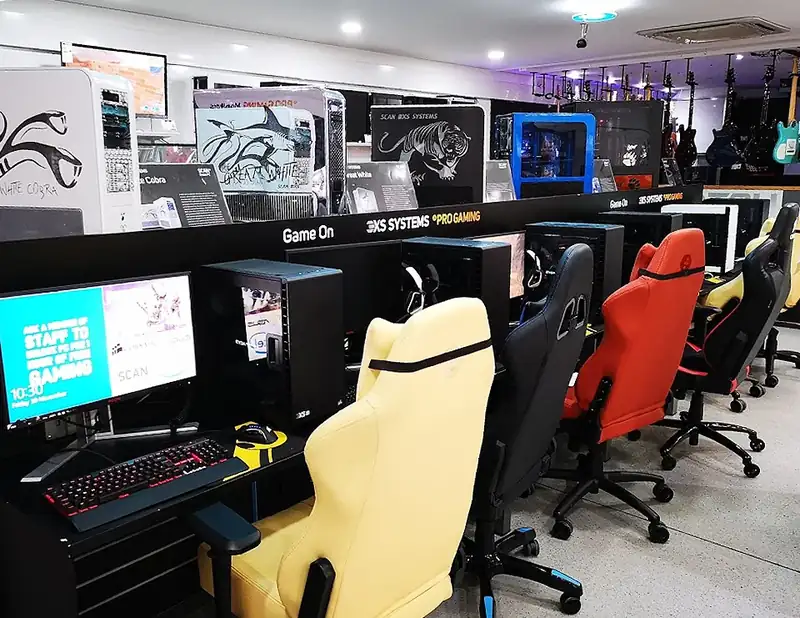
Include the appropriate cable, any necessary adapter and a storage case if required. Confirm the exact capacity variant, model code and warranty information with the retailer. Scan and other component retailers provide several external-storage choices, so use the product specification to distinguish them rather than a thumbnail. On arrival, verify the model and carry out an ordinary transfer and read-back with non-essential files before relying on it for important work. Keep the drive's role in your backup routine clear as your storage grows.
Your comparison worksheet
Keep one short record for each candidate. Resolve the details below from the current listing or a direct supplier answer before treating the options as equivalent. Leave an uncertain point clearly marked rather than filling it with an assumption.
- Role: Working storage, transport copy or an additional recoverable backup
- Capacity: Existing project sizes and realistic space for the expected growth
- Interface: Computer port, drive specification and the supplied cable considered together
- Compatibility: Supported formats, operating systems and any required security arrangement
- Recovery: Other file copies, transfer sequence and when original media is reused
Continue with the retailer information
Explore Scan, Ebuyer, Novatech. These profiles provide a route to the official shops and their published service information. Use the exact product or order details from your worksheet when following those links, and confirm the current selected option before paying.
For more relevant retailers, browse our electronics shops directory. Compare businesses that genuinely serve this purchase, keeping differences in products and shopping arrangements visible rather than treating every retailer as interchangeable.
The official source below provides further product or ordering information. Read the details relevant to your selected item, and retain any supplier answer that materially changes the comparison.
Sources and checks
Continue reading
Buying guides
A desktop PC shortlist: compare the complete specification
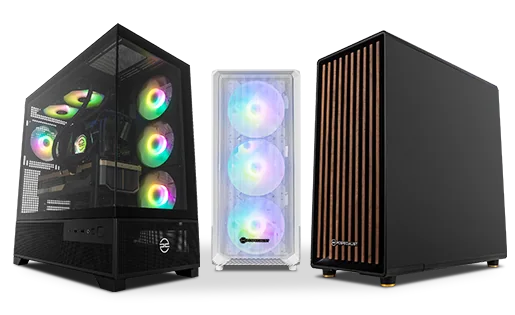
Desktop PCs with similar cases can contain very different components.
Read the guide
Buying guides
Washing-machine capacity: drum size, dimensions and programme limits
A washing machine's capacity figure does not tell you whether it fits the kitchen or suits every load.
Read the guideBuying guides
A tablet for drawing: check the pen and application before the screen
A tablet for drawing should be shortlisted around the application and pen you need, not just the screen size.
Read the guideEXPLORE THE DIRECTORY
Related shop profiles

Scan
Scan offers PC components, complete systems and specialist audio, video and creative technology. It is useful for compatibility-led shopping, from a single upgrade to a workstation configured around a particular workload.

Ebuyer
Ebuyer currently sells laptops, gaming PCs, monitors and other technology through a Frasers Group storefront. Use its present catalogue and help centre for availability and order terms, rather than relying on historic Ebuyer policies.

Novatech
Novatech supplies custom-built computers and computer hardware to individuals and organisations.