
Buying guides
A home-office monitor: match the screen to your laptop and desk
A monitor should make your actual work easier to arrange.
Published Information checked
A monitor should make your actual work easier to arrange. Before comparing screen sizes, put a laptop, notebook and keyboard on the desk and mark the space left for a stand. Write down the jobs that feel cramped on the laptop: two documents, a spreadsheet beside a call, or a timeline and preview. These needs give the shortlist a purpose beyond buying more inches.
Map the connection from end to end
List the laptop model, its video outputs and the monitor inputs. Argos' monitor guidance explains why a USB-C connector alone does not establish video compatibility. Check the supported video features of both devices and the cable between them. If you expect the monitor to charge the laptop, compare the monitor's stated power delivery with the laptop's requirements. A screen connection and a suitable charging connection are separate questions even when one cable can perform both jobs.
Use the desk measurements
Measure the available width, depth and the clearance beneath any shelf. Look up the monitor's dimensions with its stand, not just the screen diagonal. A deep stand can bring the screen further forward than expected. If choosing an arm, confirm the mounting pattern, supported load and whether the desktop can accept the clamp. Include the laptop's position and cable route; a tidy product photograph rarely shows the whole working arrangement.
Read resolution and scaling together
A display's pixel dimensions describe a different feature from its physical size. Consider how large text will appear at a comfortable setting and whether your applications handle scaling well. Try a comparable screen if possible, especially when replacing an older display with a much denser one. People doing detailed image work may have additional colour requirements, but an office shopper should not pay for an unexplained specification without knowing which task benefits from it.
Count the useful connections
A monitor's USB hub can be convenient for a keyboard, mouse or webcam, but check how that hub connects back to the computer. Speakers, a headphone socket and a webcam are not interchangeable features. Make a list of the devices you will connect every morning and draw their cable paths. This often reveals whether you need a docking station, a different cable or simply a monitor with an appropriate input.
Work through a two-screen example
Suppose a laptop has one suitable video output and the shopper wants two external monitors. Buying two identical screens does not demonstrate that the laptop can drive both at the required resolution. Start with the laptop's supported display configuration, then check a proposed dock or connection arrangement against it. If the required arrangement is unconfirmed, one larger screen may be a more straightforward candidate. Keep this as a question for the manufacturer rather than assuming a hub adds capabilities the computer lacks.
Before placing the order
Record the full monitor model, supplied cables, stand adjustments and any accessories you have added. Check whether the delivery package includes a UK power arrangement suitable for the product. Keep the box until the screen has been set up and checked, and read the retailer's return process before buying if the fit is uncertain. Once installed, spend time arranging windows and scaling to match your tasks; the benefit of the purchase comes from the usable workspace rather than the specification list alone.
Separate the main comparison points
| Record | What it establishes |
|---|---|
| Connection | Check both devices and the actual cable |
| Charging | Compare published delivery power with device requirements |
| Desk fit | Use the full stand and screen measurements |
Your comparison worksheet
Keep one short record for each candidate. Resolve the details below from the current listing or a direct supplier answer before treating the options as equivalent. Leave an uncertain point clearly marked rather than filling it with an assumption.
- Connection: Laptop video support, monitor input and the specific connecting cable
- Charging: Documented power delivery compared with the laptop's actual charging requirements
- Desk: Full stand footprint, screen height and access to nearby equipment
- Accessories: Supported mounting arrangement, supplied cables and any separately required adapter
- Work: Ordinary window layout, readable scaling and the applications used daily
Continue with the retailer information
Explore Dell, Currys, Logitech. These profiles provide a route to the official shops and their published service information. Use the exact product or order details from your worksheet when following those links, and confirm the current selected option before paying.
For more relevant retailers, browse our electronics shops directory. Compare businesses that genuinely serve this purchase, keeping differences in products and shopping arrangements visible rather than treating every retailer as interchangeable.
The official source below provides further product or ordering information. Read the details relevant to your selected item, and retain any supplier answer that materially changes the comparison.
Sources and checks
Continue reading
Buying guides
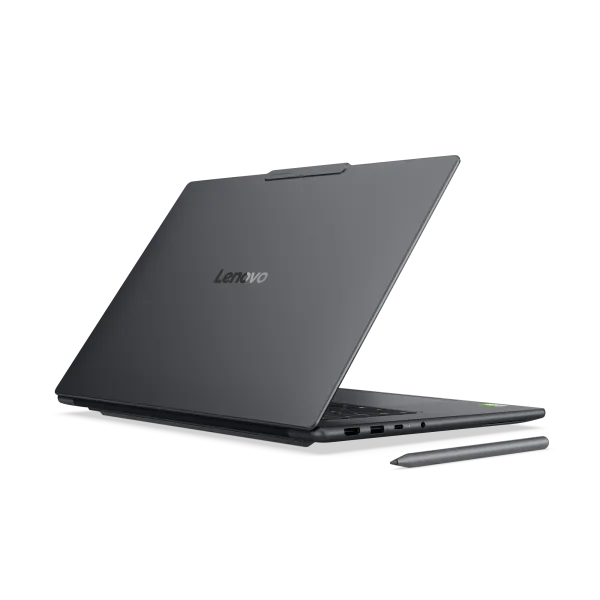
Choose a laptop for study: software, weight and working space
A useful study laptop starts with the course, not a processor badge.
Read the guide
Buying guides
USB-C charging: compare the port, cable and power supply together
USB-C describes a connector shape, but the purchase usually involves three different products: the device, the charger and the cable.
Read the guide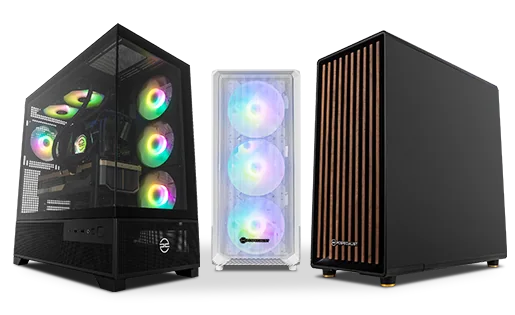
Buying guides
A desktop PC shortlist: compare the complete specification
Desktop PCs with similar cases can contain very different components.
Read the guideEXPLORE THE DIRECTORY
Related shop profiles

Dell
Dell’s UK store sells its own computers, displays and related technology, with consumer and business shopping routes.

Currys
Currys brings televisions, computers and kitchen appliances together with UK store collection and optional installation services. Compare the exact model and the complete delivered basket before choosing how to receive your purchase.

Logitech
Logitech’s UK shop sells computer peripherals and related equipment for work, communication and gaming.